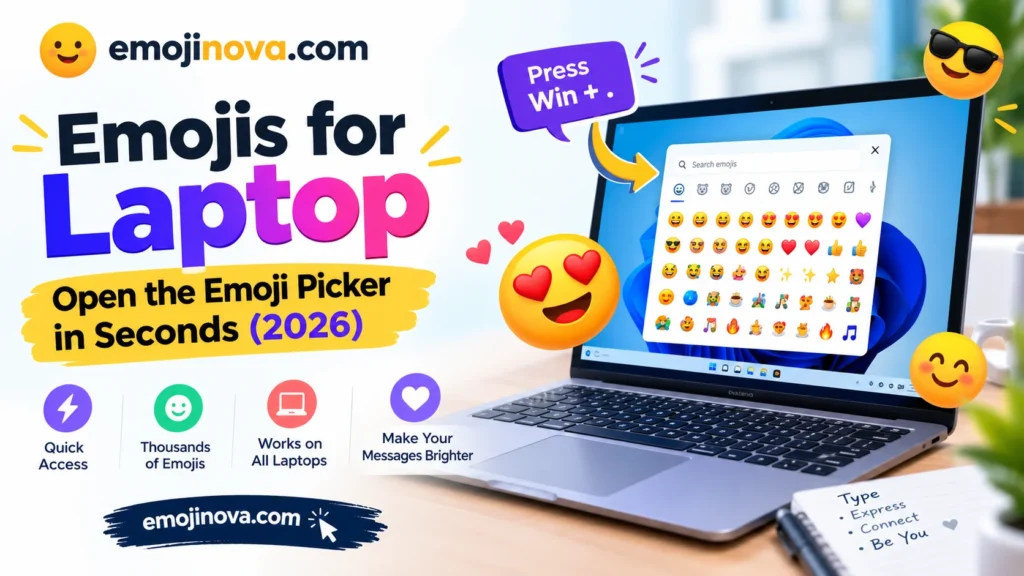
Every major laptop has a built-in emoji picker, and you open it with a shortcut. On Windows it’s Windows key + . (period). On a Mac it’s Control + Command + Space. On a Chromebook it’s Search + Shift + Space. And if you just want the laptop emoji itself, here it is: 💻
Emoji Shortcut for Every Laptop
| Laptop | Shortcut | Backup option |
|---|---|---|
| Windows 10 / 11 | Windows key + . | Windows key + ; |
| MacBook | Control + Command + Space | Fn/Globe + E, or Edit > Emoji & Symbols |
| Chromebook | Search + Shift + Space | Right-click in a text box > Emoji |
| Linux (GNOME / Ubuntu) | Ctrl + . | Right-click > Insert Emoji |
Click inside a text box first. These shortcuts don’t do anything if you’re on the desktop or in a menu.
Emojis on a Windows Laptop
Open the emoji panel
Click into any place you can type, then hold the Windows key and tap the period key. The panel pops up and you can start typing a word like “laptop” or “heart” to search. The semicolon key works the same way.
One catch: use the period next to the comma, not the one on the number pad. The numpad version doesn’t trigger the panel.
On Windows 11 the panel also has tabs for GIFs, kaomoji, symbols and clipboard history, so it’s more than an emoji list.
Add an emoji button to the taskbar
Recent Windows 11 updates added an “emoji and more” icon to the system tray, so you can click instead of remembering a shortcut. If you don’t see it, check your taskbar settings. Not every build has it yet, and the shortcut keeps working either way.
Prefer clicking? Use the touch keyboard
Right-click the taskbar, open taskbar settings and switch on the touch keyboard icon. Click that icon, then click the emoji button on the on-screen keyboard and pick your emoji. It’s slower than the shortcut, but it works on any Windows laptop, touchscreen or not.
Emojis on a MacBook
The shortcut
Press Control + Command + Space to open the Character Viewer. Click an emoji to drop it in, or double-click if the viewer is expanded. It also holds symbols and accented letters.
The one-press Globe key
If your keyboard has an Fn or Globe key, you can press Fn/Globe + E. To make a single press enough, open System Settings > Keyboard and set the Fn or Globe key to “Show Emoji & Symbols.”
No shortcut? Use the menu
In most apps, Edit > Emoji & Symbols opens the same picker.
Turn text into emojis automatically
In System Settings > Keyboard > Text Replacements, you can set a trigger such as :fire: that swaps itself for 🔥 when you type a space. It’s worth doing for the three or four emojis you use constantly.
Emojis on a Chromebook
Press Search + Shift + Space, or right-click a text field and choose Emoji. Recently used emojis show up first, which makes repeat use quick.
You may see guides claiming Ctrl + Alt + T opens the emoji picker on Chromebooks. I couldn’t find that supported by any official source, so stick with Search + Shift + Space.
Emojis on a Linux Laptop
There’s no single shortcut for all of Linux, because it depends on your desktop. On GNOME (the default on Ubuntu), right-click a text field and pick Insert Emoji, or press Ctrl + . or Ctrl + ;. This works in GTK apps. Where an app doesn’t support it, GNOME’s Characters app lets you search and copy emojis instead.
Seeing empty boxes instead of emojis? That’s almost always a missing font. Ubuntu ships with the Noto Color Emoji font, but some other distributions need it installed.
Emoji Shortcut Not Working? Try These Fixes
- Click into a text field first. The picker only opens where you can type.
- Use the right period key on Windows. The main keyboard period works, the numpad one doesn’t.
- Try the alternative shortcut. Windows key + ; on Windows, or the Edit menu on a Mac.
- Test in Notepad or a browser. If it works there, the first app is blocking it.
- Check for shortcut conflicts. Another app or a language-switching shortcut may be using the same keys.
- See boxes or black-and-white icons? The app or font doesn’t support color emoji. Paste into a newer app, or install an emoji font on Linux.
- Still stuck? Copy and paste. Copy 💻 from this page, then paste with Ctrl + V (Windows, Linux, Chromebook) or Command + V (Mac).
💻 Laptop Emoji Meaning
What it means
The laptop emoji 💻 is a picture of an open portable computer. Unicode first approved it in 2010 under the name “Personal Computer,” and it joined the standard emoji set in 2015. That’s why technical references say “personal computer” while most pickers call it “laptop.” Its codepoint is U+1F4BB.
There’s no official emotional meaning attached to it. It represents the object, and people stretch that to the things they do on it: working, studying, coding, being online. The words around it do the rest.
How people actually use it
Nadia: Are you coming to the café tonight?
Priya: Can’t, my report is due at nine tomorrow 💻😩
Here 💻 gives the reason (work) and 😩 gives the mood. Drop the second emoji and it reads as a plain explanation.
Omar: Did the update go out?
Lena: Pushed it five minutes ago 👩💻✅
The technologist emoji makes it about Lena’s own work as a developer. A bare 💻 would sound more like “I’m at my computer.”
Sam: Where are you?
Dee: Working from the library today 💻
No drama here. It simply says where she is and what she’s doing.
Laptop and Tech Emojis to Copy
| Emoji | Name | Typical use |
|---|---|---|
| 💻 | Laptop (personal computer) | Work, study, being online |
| 🖥️ | Desktop computer | Office setups, monitors |
| ⌨️ | Keyboard | Typing, writing, coding |
| 🖱️ | Computer mouse | Clicking, browsing |
| 🔋 | Battery | Fully charged, energy |
| 🪫 | Low battery | Exhausted, needs a charge |
| 🔌 | Electric plug | Charging, being connected |
| 🛜 | Wireless | Wi-Fi, connection |
| 🧑💻 | Technologist | Developers, IT, remote work |
| 👩💻 👨💻 | Woman / man technologist | Same, with a gendered option |
This shows common usage. Unicode defines the names and shapes, and the social meanings come from how people use them. If 🪫 or 🛜 shows up as a box on an older device, age is the likely reason: 🪫 arrived in Emoji 14.0 (2021) and 🛜 in Emoji 15.0 (2022).
Copy-ready: 💻 🖥️ ⌨️ 🖱️ 🔋 🪫 🔌 🛜 🧑💻 👩💻 👨💻
💻 vs 🖥️ vs ⌨️
💻 is the safe general pick, and everyone recognises it. 🖥️ suggests a fixed desk setup, and ⌨️ points to the act of typing. For anything about working from wherever you are, 💻 fits best.
There’s also a technical difference. 💻 displays in color by default, while ⌨️ and 🖥️ can sometimes show up as plain black-and-white symbols depending on the app or font. If you’ve ever wondered why one tech emoji looks flat, that’s usually why.
Why Emojis Look Different on Other Devices
Unicode standardises the character, but every company draws its own artwork. The same laptop emoji looks different on Apple, Google, Samsung and Windows. The meaning stays the same, but the style changes when your message lands on someone else’s phone.
Faster Ways to Reuse Emojis
- Shortcodes in chat apps. Type
:computer:in Slack, Discord or GitHub to get 💻. - Text replacement on Mac. Set your own triggers, as described above.
- Clipboard history on Windows. Press Windows key + V to bring back emojis you copied earlier.
Using Emojis on a Laptop at Work
Most workplace messages are written on a laptop, so tone matters more than on a phone. A quick ✅ or 👍 in an internal chat is usually fine. In a client email, many people prefer none. If you’re unsure, copy what your colleagues do.
FAQ
What is the emoji shortcut on a laptop?
Windows: Windows key + . Mac: Control + Command + Space. Chromebook: Search + Shift + Space. GNOME on Linux: Ctrl + .
Do I need to install anything?
No. Windows, macOS, ChromeOS and common Linux desktops all include an emoji picker.
What is the laptop emoji?
💻. Unicode lists it as “personal computer.”
Why do some emojis show as boxes?
The app or font doesn’t support that emoji. Update your system, try a different app, or install an emoji font on Linux.

Shahzad
Hi, I’m the creator behind EmojiNova, a passionate emoji enthusiast who loves exploring the fun and creative world of digital communication. I enjoy helping people discover emoji meanings, understand emoji symbols, and find the perfect emojis to express their feelings.
Through EmojiNova, my goal is to make online communication easier, more expressive, and more enjoyable. Whether you’re looking for emoji meanings, symbol explanations, or creative ways to use emojis in everyday conversations, I’m here to help you express yourself with confidence.
Thanks for being part of the EmojiNova community!